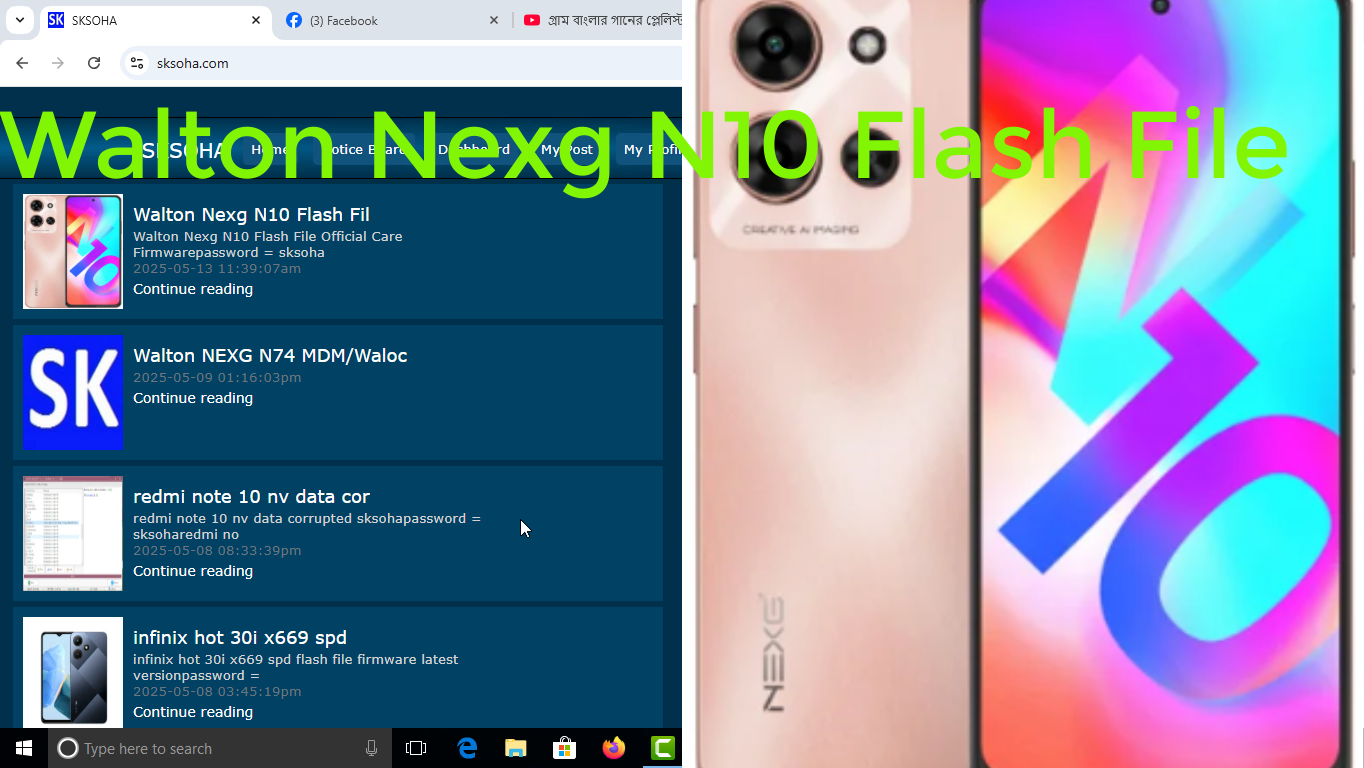

Walton Nexg N10 mdm file unlock tool
password = null
Obtain Firmware for Walton Nexg N10
Is your Walton Nexg N10 on the logo screen? Don't panic, this is a frequent issue that can often be solved by uploading the appropriate firmware. This guide will walk you through the process of retrieving the right firmware for your device and flashing it to get your Walton Nexg N10 functioning smoothly again.
Nonetheless, ensure you download the firmware from a trustworthy source to avoid any potential complications. Once you have the software package, you'll need a device and the suitable software to install it.
Keep in mind that flashing firmware can possibly harm your device if done incorrectly.
Continue with caution and follow the instructions carefully.
Address Walton Nexg N10 Lagging Matter with Latest Firmware
Are you facing a frustrating hanging/freezing/lag issue/problem/matter on your Walton Nexg N10 Don't worry, a new/latest/updated firmware update can often resolve/fix/address these kinds of issues/problems/matters. This update/upgrade/patch typically includes performance/system/software improvements/optimizations/enhancements that can stabilize/smooth/optimize your device and eliminate/reduce/minimize the hanging/freezing/lag ( Walton Nexg N10 ) logo hang solution firmware download problem/issue/matter. To resolve/fix/address this issue/problem/matter, follow these simple steps:
Go/Navigate/Head to the Settings/Configuration/System Settings menu on your Walton Nexg N10 .
Select/Choose/Tap on the Software/System/Device Update/Upgrade/Installation option.
Check/Look for/Scan for any available firmware updates/upgrades/patches.
Download/Install/Apply the latest firmware update/upgrade/patch and follow the on-screen instructions/guides/prompts carefully.
After the firmware/software/system update is complete/finished/installed, restart/reboot/power off/on your device. You should now experience a smoother/faster/more stable performance and the hanging/freezing/lag issue/problem/matter should be resolved/fixed/addressed.
( Walton Nexg N10 ): Fixing a Logo Stuck Issue
If your (Walton Nexg N10 ) smartphone is stuck on the logo screen during startup, you might need to flash its firmware. This guide will walk you through the process of flashing the proper firmware for your device and hopefully resolve this common issue. Before you begin, remember to save all important data from your phone as this process will erase all information stored on it.
Download the latest firmware package for your ( Walton Nexg N10 ) model from a reliable source. Make sure to verify the file's integrity before proceeding.
Deploy the necessary flashing software on your computer. This could be SP Flash Tool or a similar program.
Link your phone to the computer using a USB cable. Ensure that USB debugging is enabled on your device.
Unzip the firmware package you downloaded and locate the necessary files for flashing.
Follow the instructions provided by the flashing software to flash the firmware onto your device. This may involve selecting specific folders and starting the flashing process.
Once the flashing process is complete, disconnect your phone from the computer.
Its Walton Nexg N10 should now turn on normally. If it persists to show the logo screen, you may need to repeat the process or seek further assistance from a qualified technician.
Official Walton Nexg N10 Flash File for Logo Problem
Are you facing a stubborn logo problem on your Walton Nexg N10? This frustrating issue can leave you unable to access your device's main menu. Luckily, there's a solution! This article provides guidance on downloading and flashing the genuine Walton Nexg N10 firmware. Before you begin, remember to back up any important data as flashing can erase all content on your device.
Confirm you have the correct flash file for your specific model: Walton Nexg N10.
Acquire the flash file from a trusted source. Verify the file's integrity before flashing.
Prepare your device by charging it to at least 50?ttery level.
Use a reliable laptop with a stable USB connection.
Implement the flashing instructions carefully. This typically involves using specialized software like SP Flash Tool.@SPD Upgrade Tool,@online tools,